
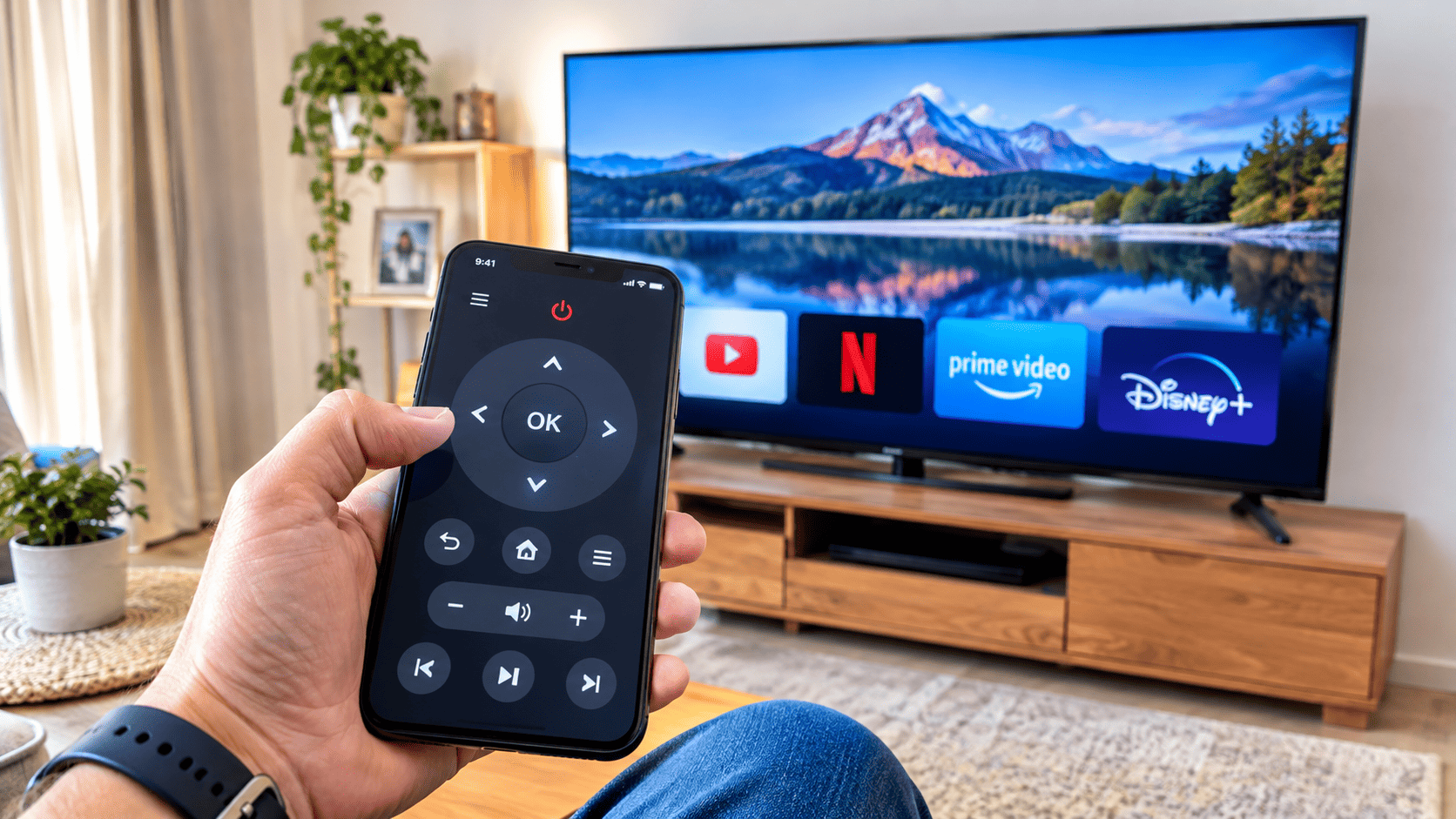
Have you ever sat down to watch television and realised that your remote control is missing? You may be able to use your phone instead. Many modern smartphones can control compatible smart TVs through an application. Depending on your television and phone, you may be able to change channels, adjust the volume, navigate menus, and control streaming applications. Some televisions also support screen sharing, which lets you display content from a phone on a larger screen.
However, the steps depend on the television brand, phone model, and available connections. This guide explains how to use your phone as a TV remote, control an Apple TV, and explore screen sharing options.
Can I Use My Phone as a TV Remote?
Yes, you can use your phone as a TV remote if your television and phone support a compatible control method.
Use an Official TV Remote Application
Many television brands provide official applications that allow you to control compatible smart TVs. Depending on the model, these applications may let you change the volume, open applications, move through menus, and enter text using your phone’s keyboard.
Start by checking your television manufacturer’s website or the official application store on your phone. You can also explore the available Smart TVs to learn about different smart TV options.
Make sure the application supports your exact TV model before installing it.
Connect Your Phone and TV to Wi Fi
Many smart TV remote applications require your phone and television to be connected to the same Wi Fi network.
Follow these steps:
- Connect your television to your home Wi Fi.
- Connect your phone to the same network.
- Install a compatible remote application.
- Open the application and follow the setup instructions.
- Select your television when it appears.
- Complete any pairing steps shown on the screen.
Some televisions may ask you to confirm the connection using a code or message.
If the television does not appear, check that both devices are connected to the correct network and that the application supports your model.
What If Your TV Does Not Support Wi Fi?
Some older televisions do not have smart features or wireless network support.In this situation, a phone application may not be able to control the television directly. Certain phones have infrared hardware that can work with compatible televisions, but many modern phones do not include this feature. Check your phone’s specifications before relying on infrared control.
If your phone and television are not compatible, you may need a physical remote or a supported external device. You can browse available TVs in the shop if you are considering upgrading to a compatible smart TV.
How to Use an iPhone as a TV Remote
An iPhone can control certain smart televisions through supported applications and built in features.
Control an Apple TV with Your iPhone
Apple provides a remote feature through the Apple TV Remote controls available on compatible iPhones.To use it, make sure your iPhone and Apple TV are connected to the same Wi Fi network and are configured for use together. Open Control Centre on your iPhone. Depending on your iOS version and settings, you may need to add the Apple TV Remote control first. Select your Apple TV and follow any pairing instructions displayed on the screen. You can then use the on screen controls to navigate menus, play content, and adjust supported functions.
Control Other Smart TVs
For a television from another brand, check whether the manufacturer provides an iPhone application. Install the official application and follow its connection instructions. Some televisions may require you to approve the connection on the screen.
Avoid installing unknown remote applications that request unnecessary permissions or personal information.
How to Use EShare on a Smart TV
EShare is a screen sharing and control application available on certain compatible televisions and devices. Its features depend on the version installed and the hardware being used.
Check Whether Your TV Supports EShare
Before trying to connect, check whether EShare is installed on your television or supported by its operating system. If it is not available, you may need to use another screen sharing feature supported by your TV.
Connect Your Phone
The usual setup process involves connecting the phone and television to the same local network and opening the compatible application. Follow the instructions shown on the television. You may need to scan a QR code, enter a connection code, or select the television from a list.
The exact steps vary by model.
Share Your Screen or Media
Once connected, supported versions may allow you to share your phone screen or display selected photographs, videos, and other content. For example, you could show holiday photographs on a large television instead of passing your phone around the room.
If screen sharing does not work, check network connectivity, application compatibility, and the permissions requested by the app.
How to Use an Apple TV Remote
An Apple TV remote helps you control the Apple TV device connected to your television. You can use a physical remote or the supported remote feature on an iPhone.
Navigate Menus and Applications
Use the navigation controls to move through menus and choose an application. The available controls depend on the remote model. You can open supported streaming applications, select content, and control playback.
Adjust Volume and Playback
Depending on your setup, the remote may also control television volume and other supported functions. If volume controls do not work, check the Apple TV settings, HDMI connection, and television compatibility.
Some functions may require additional setup.
How to Fix Common TV Remote Problems
If your phone cannot control your television, try a few basic checks before reinstalling the application.
Check the Wi Fi Connection
Make sure the phone and television are connected to the same network when the application requires it. If either device has lost its connection, reconnect it and try again.
Restart the Devices
Close the remote application and reopen it. If necessary, restart the television and phone. A simple restart may resolve temporary connection problems.
Check Application Compatibility
Make sure the application supports your television model and phone operating system. Update the application if an update is available from the official app store.
Review Pairing Instructions
Some televisions require you to approve a new device or enter a pairing code. Follow the instructions displayed on the screen. If the connection still fails, consult the television manufacturer’s support information.
Is Using a Phone Better Than a Physical Remote?
A phone can be convenient because you may already carry it everywhere. It can also make typing passwords and searching for content easier on supported televisions. However, a physical remote may be simpler for people who want immediate access without unlocking a phone or opening an application.
Phone control also depends on battery life, compatibility, and network connectivity.
Keeping a working physical remote as a backup can be useful. If you are looking for another television or planning an upgrade, you can explore used TVs for sale in Dubai and check the available models.
Conclusion
You may be able to use your phone as a TV remote if your television supports a compatible application or control feature. Check your television model, connect devices as required, and follow the official setup instructions. iPhone users can also explore the Apple TV Remote feature for compatible Apple TV devices. If you want to share content, check whether your television supports EShare or another screen sharing option. With the right setup, your phone can make controlling a smart TV easier and more convenient. If you need help choosing a television, you can contact Mohsin Used Electronics TV to ask about available models.