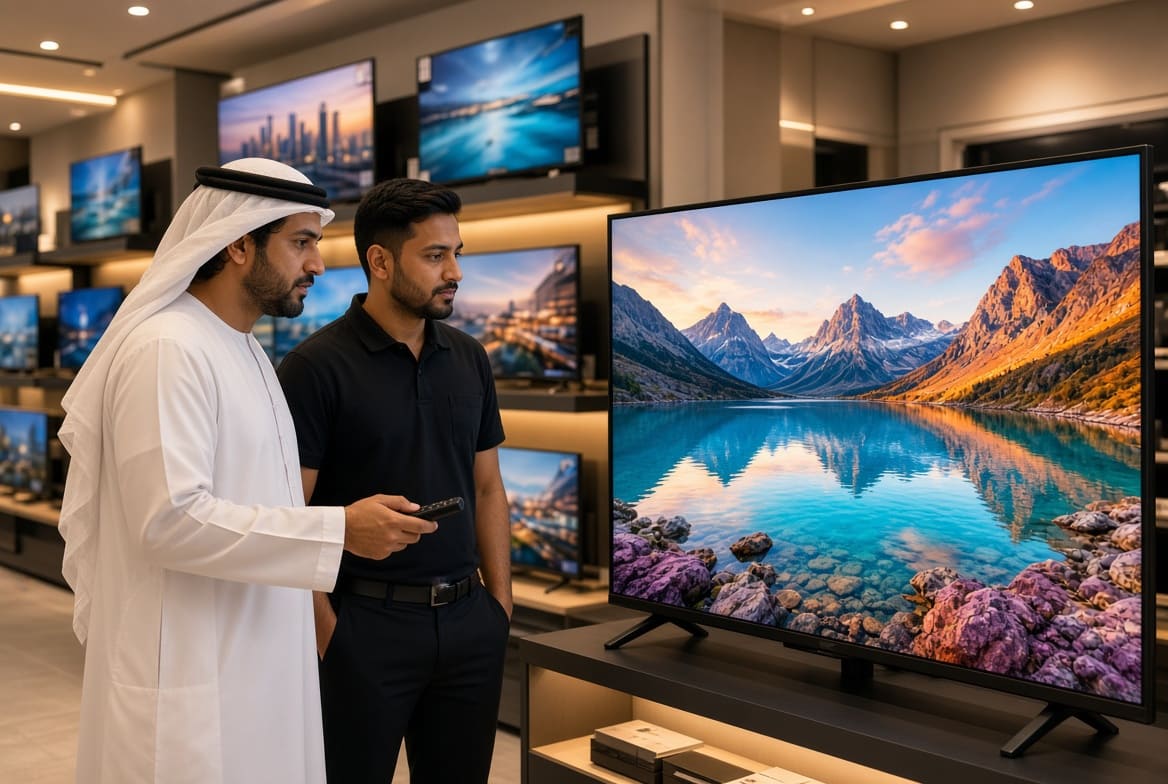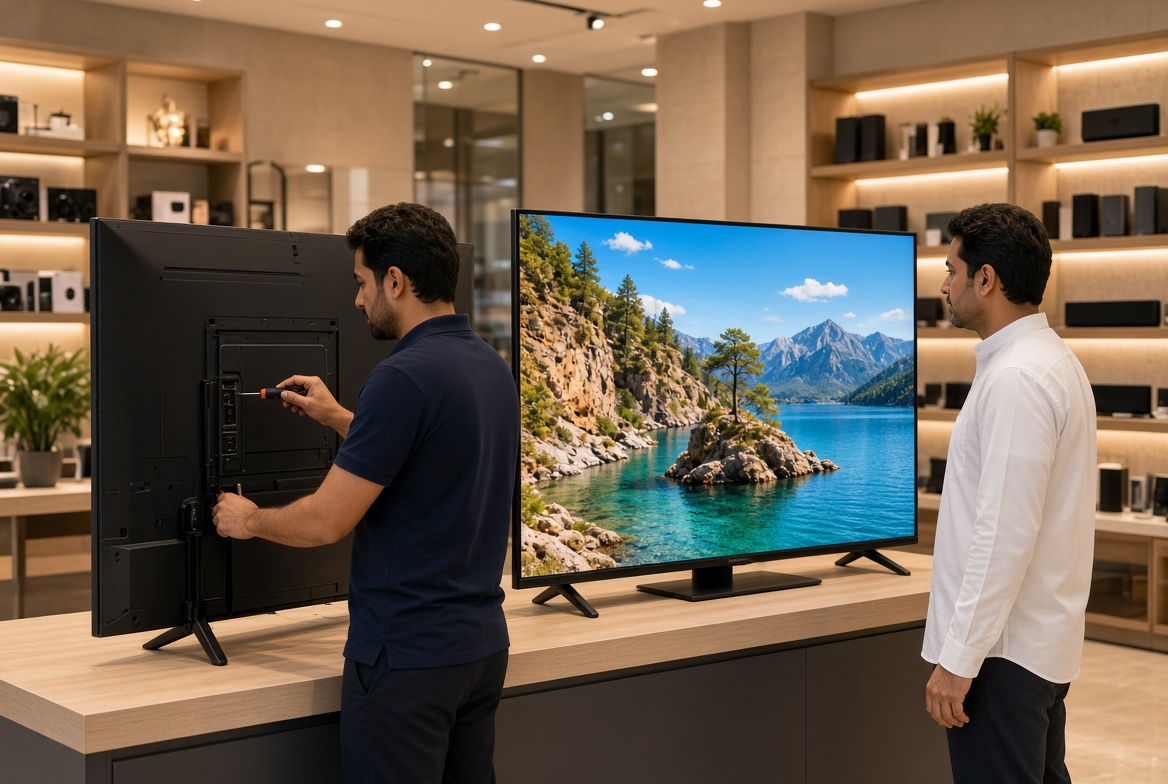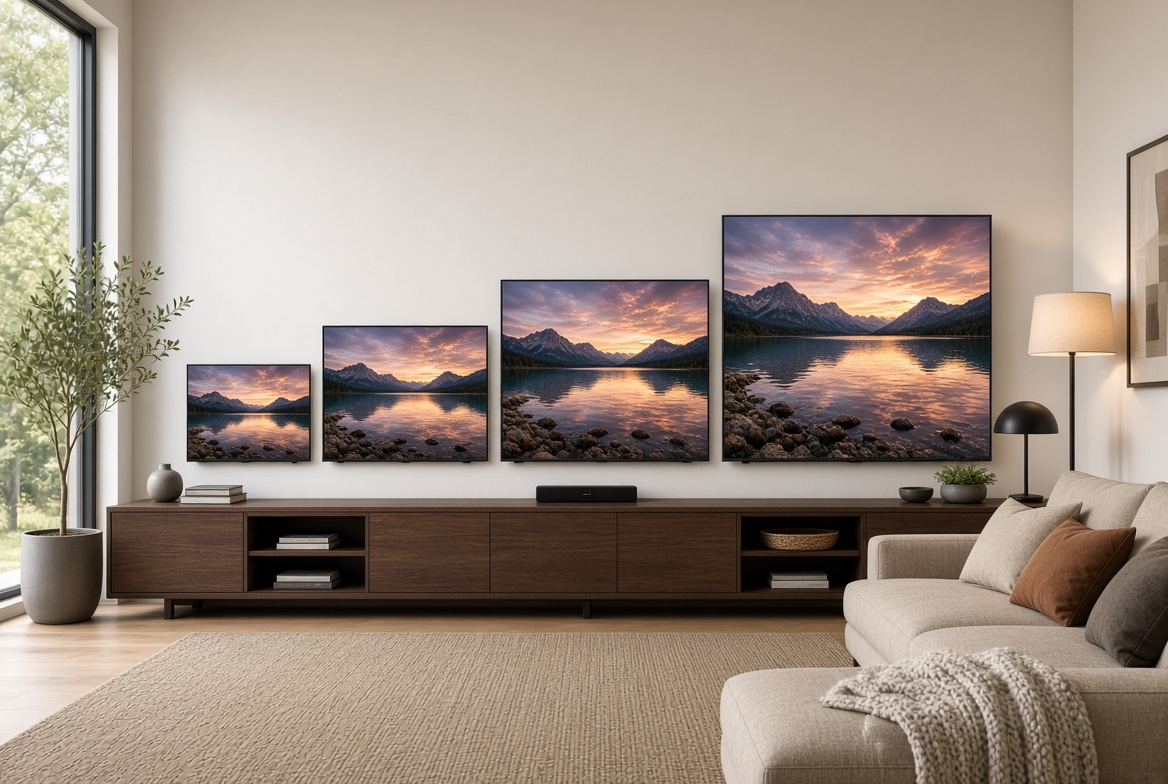


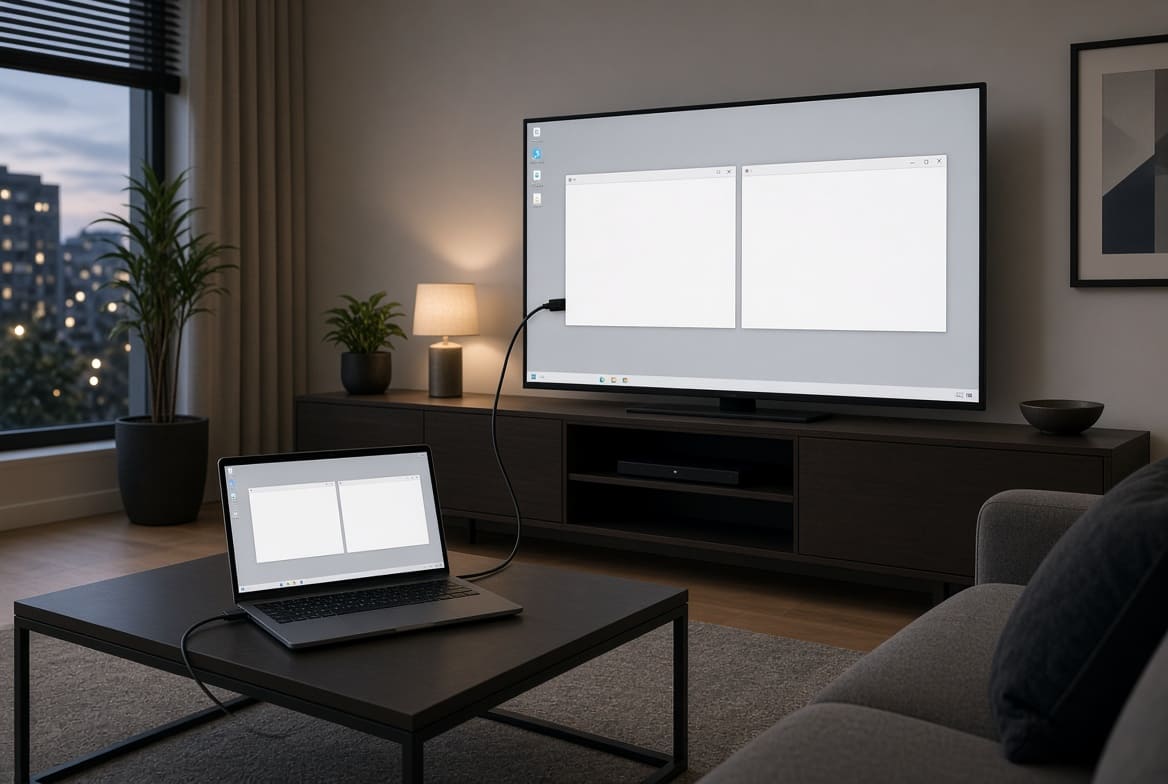
Yes, a TV can be used as a PC monitor if it has a compatible connection and supports your computer’s display output. Many televisions include HDMI ports, making it possible to connect a desktop computer or laptop and use the television as a larger screen. This setup can be useful for watching videos, showing presentations, playing games, or working with documents. It may also save money if you already own a television. However, a television does not always provide the same experience as a computer monitor. Picture sharpness, input delay, screen size, and viewing distance can affect how comfortable it is to use. This guide explains how to connect a TV to a computer, adjust the settings, and decide whether this setup is right for you.
How Can a TV Be Used as a PC Monitor?
Most modern televisions with an HDMI input can display a compatible computer’s screen.
Connect Your Computer Using HDMI
HDMI is one of the easiest ways to connect a computer to a television. It can carry both video and audio through one cable.
Follow these steps:
- Check whether your computer and television have HDMI ports.
- Connect one end of the cable to your computer.
- Connect the other end to the television.
- Turn on both devices.
- Select the correct HDMI input on the TV.
- Choose the display settings on your computer.
Once connected, your computer screen should appear on the television.
If your computer does not have HDMI, you may need a compatible adapter. Check your computer’s ports before buying one.
Connect a Laptop to a TV
A laptop can connect to a television in the same way if both devices support HDMI.
For example, you can connect your laptop to a large TV to watch a film or display a presentation for several people. Make sure the television is set to the correct input. If the screen remains blank, check the cable, input selection, and computer display settings.
Use Wireless Screen Sharing
Some computers and smart TVs support wireless display features. These allow compatible devices to share a screen without a direct video cable.
Wireless options depend on the computer, television, operating system, and available network features. Wireless sharing can be convenient for presentations and videos, but it may introduce delay or connection problems. A wired HDMI connection is often a better choice for tasks that require quick responses.
Benefits of Using a TV as a Computer Monitor
A television can be useful as a computer display in several situations.
Enjoy a Larger Screen
Televisions are often larger than standard computer monitors. A large display can be helpful when watching films, showing photographs, or viewing presentations.
For example, a family can connect a laptop to a living room television to watch a video together instead of gathering around a small screen.
Save Money
If you already own a suitable television, you may not need to buy a separate monitor for occasional computer use. This can be useful for students, home users, and people who only need a larger screen from time to time.
However, if you plan to work at a desk every day, compare the comfort and picture quality with a dedicated computer monitor.
Improve Entertainment
A television can provide a comfortable way to play computer videos on a large screen.
You can also connect a compatible gaming computer and enjoy games from a sofa. The results depend on the television’s refresh rate, response time, and supported resolution.
Share Presentations
A TV can display slides, spreadsheets, and other content for a group of people.
This can be useful in classrooms, meeting rooms, and small offices. Check the screen resolution and text size so that people can read the content clearly from a distance.
Disadvantages of Using a TV as a Monitor
Although a television can work as a computer display, there are some limitations to consider.
Text May Look Less Sharp
A television may not display small text as clearly as a computer monitor, especially when the screen is large and you sit close to it. The result depends on screen resolution, pixel density, and display settings.
If you mainly work with documents or spreadsheets, check how readable the text looks before using the television for long periods.
Input Delay Can Affect Gaming
Input delay is the time between an action on your computer and the result appearing on the screen. Some televisions have more delay than gaming monitors. This can affect fast games where quick reactions matter.
If you want to play computer games, look for a television with a suitable game mode and low input delay.
A Large Screen Needs More Space
A large television may not fit comfortably on a small desk. You also need to consider how far you sit from the screen.
If the display is too close, you may need to move your head more often to view different parts of the screen.
Refresh Rate and Motion Quality Vary
Refresh rate describes how many times a screen updates each second. A higher refresh rate can provide smoother motion when the computer and television support it. Check the television’s specifications if you need smooth movement for gaming or other fast activities.
How to Adjust TV Settings for Computer Use
After connecting your devices, adjust the settings to improve picture quality and comfort.
Select the Correct Resolution
Open your computer’s display settings and choose a resolution supported by the television.
Using the recommended resolution can help keep text and images clear. If the picture looks stretched or blurry, check the resolution and scaling settings.
Turn On PC or Game Mode
Some televisions offer a PC mode or game mode. These settings may improve text display or reduce processing delay.
The exact names and features vary between brands. Check your television’s settings menu for available options.
Adjust Brightness and Text Size
Set the brightness to a comfortable level for your room. If the screen looks too bright, reduce it to avoid discomfort.
You can also adjust text size and scaling in your computer’s settings. Larger text may be easier to read when you sit farther from the television.
Check Audio Output
HDMI can carry sound as well as video. If you cannot hear audio through the television, check your computer’s sound output settings and select the correct device.
You can also use compatible external speakers or headphones.
Can a Monitor Be Used as a TV?
Yes, a computer monitor can sometimes be used to watch television content.
A monitor with HDMI can connect to a compatible streaming device, computer, or television receiver. However, a monitor may not include built in television channels, speakers, or a remote control.
Check the available connections and audio options before using a monitor for television viewing.
Conclusion
A TV can be used as a PC monitor for entertainment, presentations, casual gaming, and everyday computer tasks. An HDMI connection is often the simplest way to get started. Before connecting your devices, check the available ports, supported resolution, and display settings. Consider screen sharpness, viewing distance, and input delay if you plan to work or play games regularly. If you already own a suitable television, try connecting it before buying another display. It may provide a useful and affordable solution for your needs.